

I am going to tell you a story of a blunder and an oversight, which I hope will help you if you find yourself in this situation, and I will take the opportunity to leave it for posterity as documentation, in case it happens to me again in the future. ¯\_(ヅ)_/¯
A client (and good friend) asked me for help—I really like that guy! You have no idea how much I learn from his projects.
He has a WordPress online store and one of his suppliers provided him with the files for all his products.
To automate the upload process, he told me:
- I need to upload some images to WordPress. Can you help me?
- My response: Yes, of course, it is very simple.
Of course, then I faced reality; in my head, I thought it was 20-30 images, but it was a folder with 18,447 images of products.
The truth is that I had never bulk uploaded images to WordPress before.
I imagined that FTP might be the best way, so I searched on Google (as one does) and came across two interesting articles:
- Bulk Uploading Files on the Kinsta blog
- Uploading Images to WordPress via FTP on Gonzalo Romo’s blog
Optimizing Images
It seems obvious, but the 18,447 images were NOT optimized. Sorting them by size is easy; I kept all those that weighed more than 100 kb, and for one group, simply resizing them was enough.

To do this on my Ubuntu system, I installed ImageMagick, which allows me to resize using the context menu. The full explanation is on the Solo Linux blog: Resizing Images in Ubuntu.
I solved the remaining group with the online tool TinyPNG. I did it with one click because I have the paid version, but you can do it in batches if you do not want to pay for the tool’s license.
Great, we have the optimized images; let’s move on to the next step:
Uploading Files via FTP
The first step is simple: we upload the files in question to the WordPress uploads folder.
I use FileZilla to connect via FTP and locate the folder: /wp-content/uploads
So far, so good. We already know that FTP is a bit slow, so the 18,447 images took their time. And logically, you expect to see them in the media folder of your WordPress admin, right?
Exactly, they are not there. Why? Well, because you need to add them to the database.
The file may be there, but if WordPress does not recognize it, it doesn’t matter; it is as if it didn’t exist.
The articles mentioned at the beginning recommend a plugin: Add from Server

But this plugin gave me many headaches; it kept hanging. At that moment I thought: Why didn’t I test it with just a few images?
As you can see, this story has taught me many things ¯\_(ヅ)_/¯

When I feared I would have to find a way to do it via SQL, I finally solved it with the plugin Media Sync, which worked wonderfully for me, and I even left a review because you have no idea how much of a relief it was.
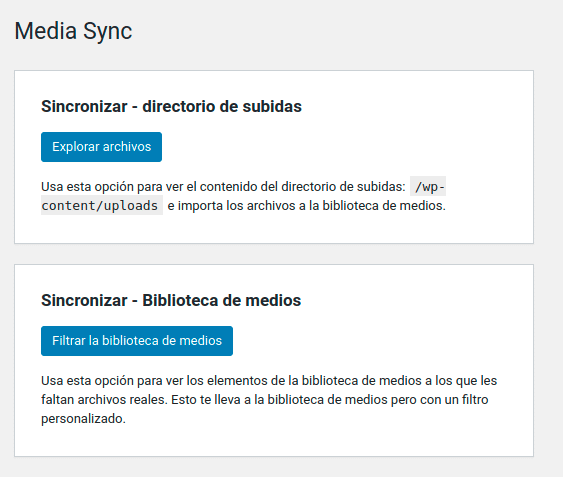
Once installed, it creates an option in the media menu for you to explore files, and it will indicate which files in the uploads folder are not in the media library.
Furthermore, by default, the plugin performs a dry run during the scan, as it involves changes to the database. For this reason, it leaves the checkbox checked by default. If you want to make the final changes, you must uncheck the box. The plugin creator is clever, isn’t he? Safety first:
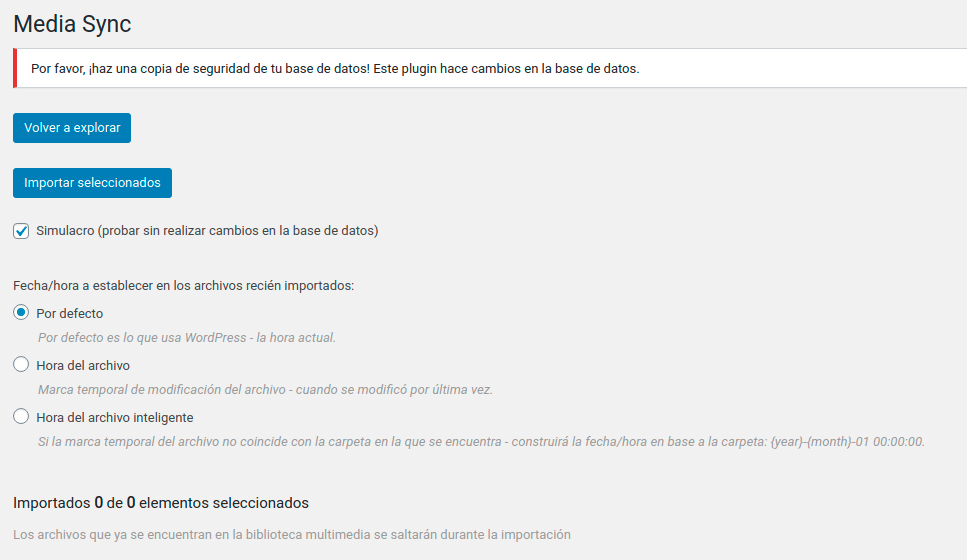
You can filter files by:
- All files
- Only files missing from the media library
I took the easy path: I filtered by all the missing files and clicked import. I was happy and elated, watching how the images appeared little by little.
But my oversight led me to make another mistake in this process, which I will tell you about in the next point:
My Clumsiness Knows No Bounds
The devil is in the details, as the saying goes, right?
I did it quickly without realizing that a hosting plugin stores a folder of optimization files, and it was selected by default. This folder was full of minified JavaScript files and, of course, everything ended up in the media folder.
After a while of considering myself the silliest person on the planet, I said to myself, okay, how do I fix this?
I had to resort to MySQL, and by identifying the tables where media files are stored (wp_posts), I performed the following search:
SELECT * FROM `wp_posts` WHERE `post_type` = 'attachment' AND `post_mime_type` = 'application/javascript'; This search allowed me to find all the JavaScript files that do not belong in that media folder with a single query and delete them in a few clicks.
Thank goodness!
What can we learn?
I learned a lot, and I hope that if you find yourself needing to bulk upload images to WordPress, you can do it using this method while avoiding my mistakes.
Later, I came across other options. Apparently, with WP-CLI, you can do it using the command: wp media import.
But I didn’t get around to testing those options; I have only installed WP-CLI, but I don’t feel very confident using it yet, even though I am a big fan of using the terminal. I will find the time and dedicate myself to it. I will surely rely on Jorge (unapersona) for this task. 🙂
In short, my friend is happy with his 18,447 images, and I am proud that the blunder wasn’t that big and, on top of that, it gave me material for this blog, which I hadn’t been able to write for a while, so it’s a win-win.
Live long and prosper!
Do you know how to do it another way? We would be delighted to read about your method in the comments. 😉

